Connect your AI assistant to your Acenda analytics
Acenda MCP lets Claude, ChatGPT, Gemini, or Grok answer questions about your store — orders, sales, products, marketplaces, returns — by querying your organization's analytics directly. Read-only, scoped to your organization, and signed in with your own Acenda account.
Replace the highlighted part with your organization slug — the part
right after the domain in your Acenda admin URL:
https://admin.acenda.io/your_org.
Every provider below asks for this one URL; there are no API keys or
client IDs to configure.
You need an Acenda account with access to the organization. When a provider asks you to sign in, use your normal Acenda credentials and approve the access prompt.
- What were my sales by marketplace last month?
- Top 10 products by revenue this quarter — and how do returns compare?
- How is average order value trending week over week?
Claude
Open claude.ai/settings/connectors · official guide
-
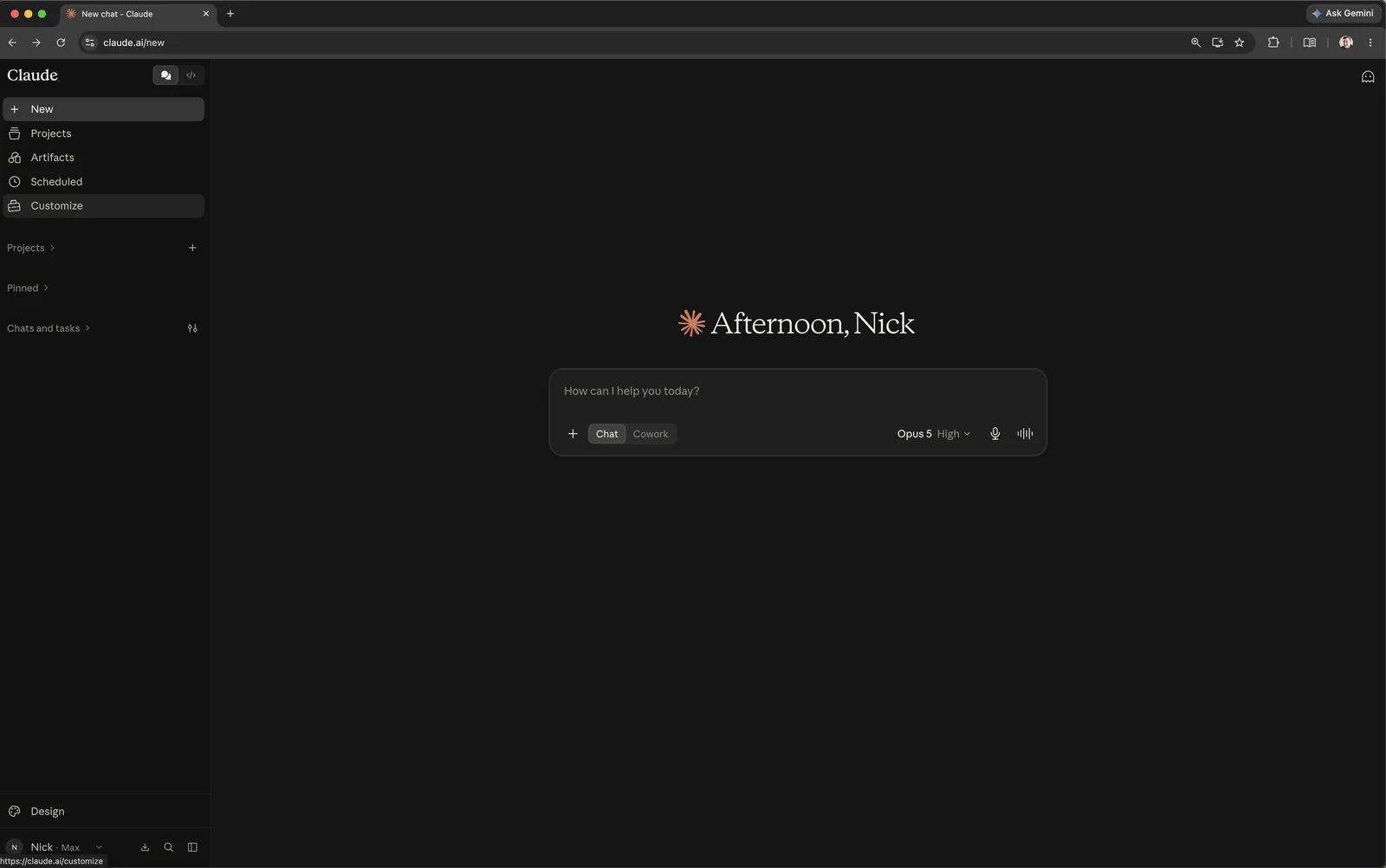
In the sidebar, open Customize, or go straight to Settings → Connectors with the link above.
-
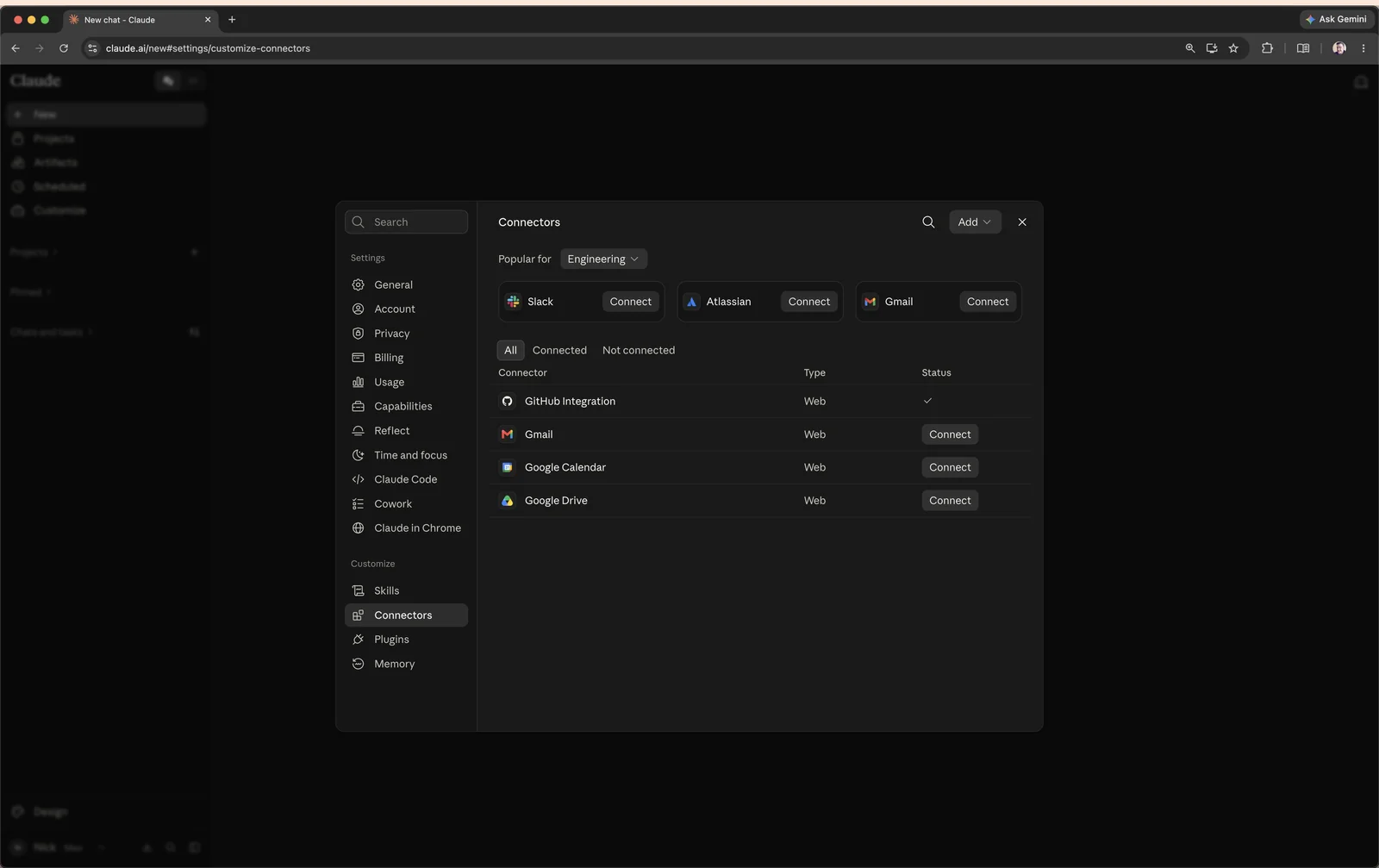
In the Connectors panel, click Add in the top-right corner.
-
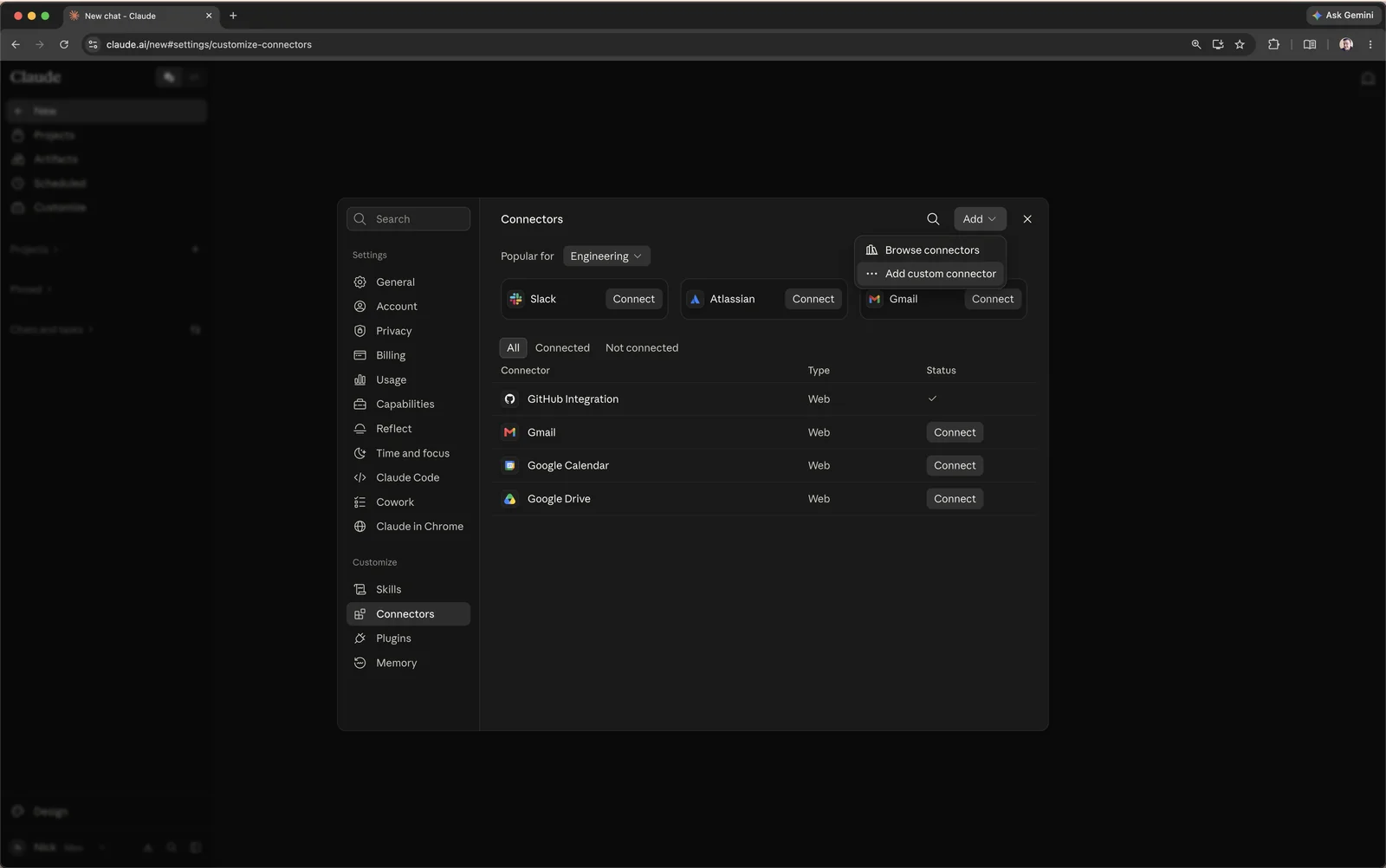
Choose Add custom connector from the menu.
-
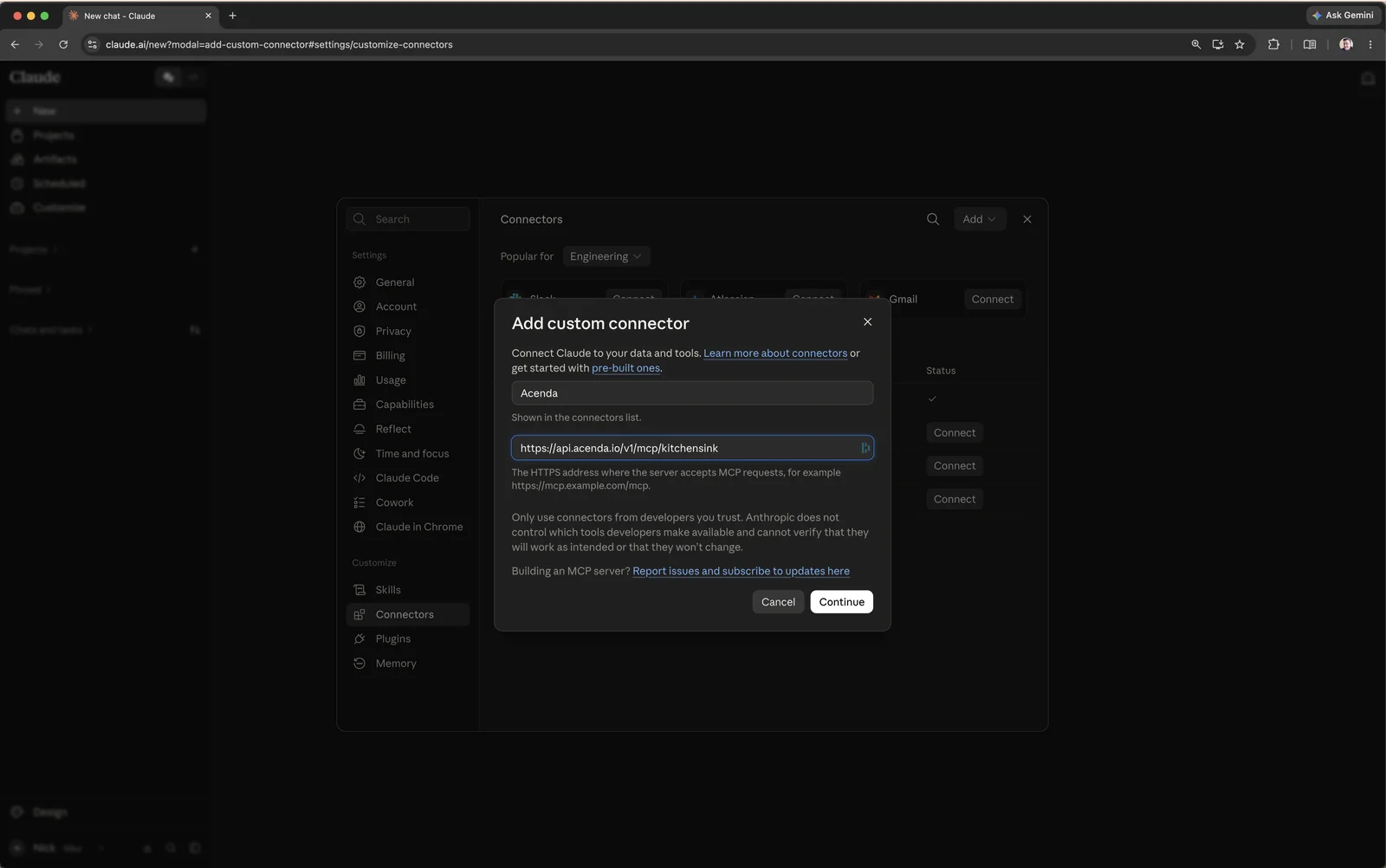
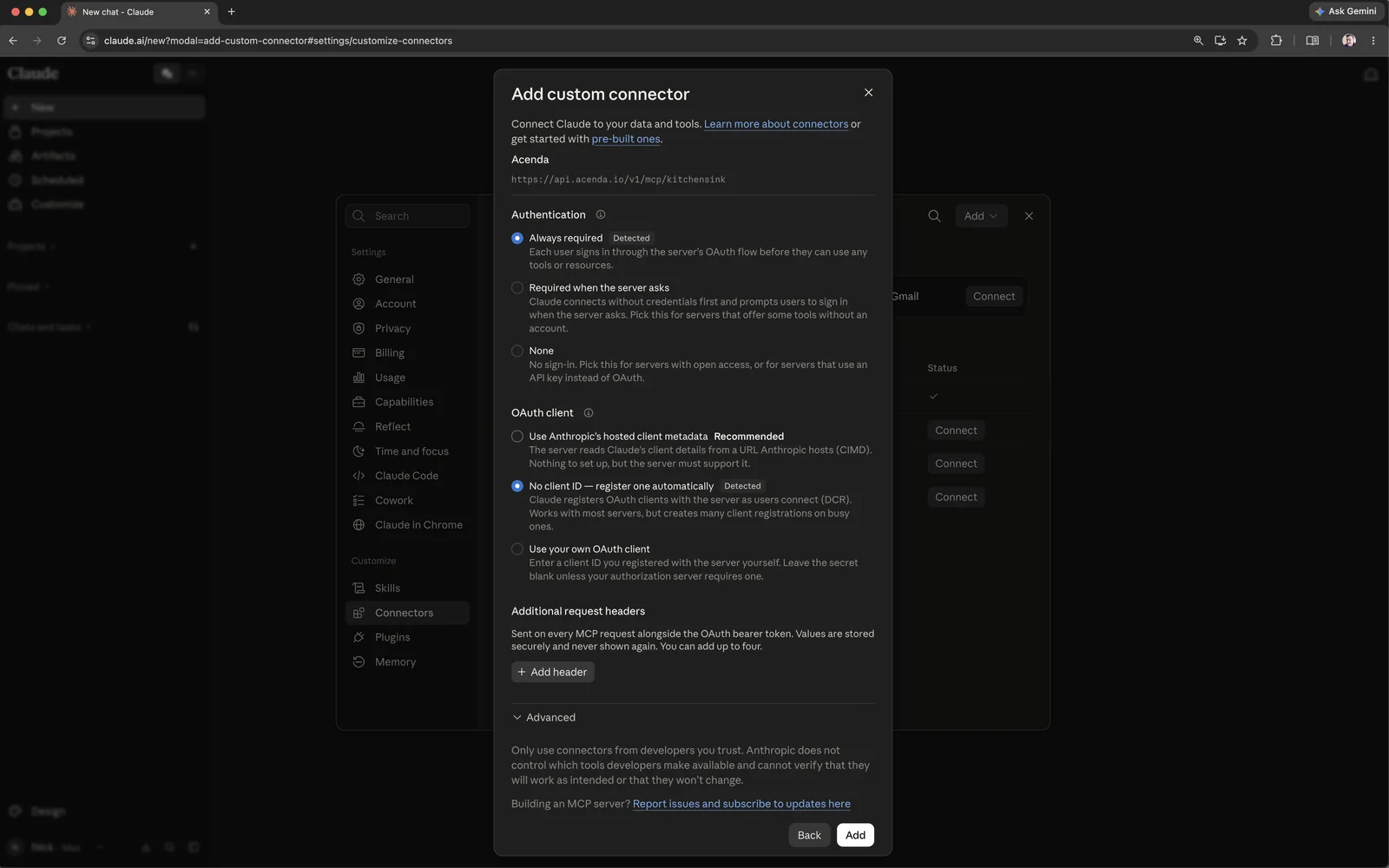
Name it Acenda, paste your MCP server URL, and click Continue.
-
Leave the detected authentication settings as they are (Always required, register a client automatically) and click Add. Then click Connect and sign in with your Acenda credentials.
ChatGPT
Open chatgpt.com/plugins · official guide
-
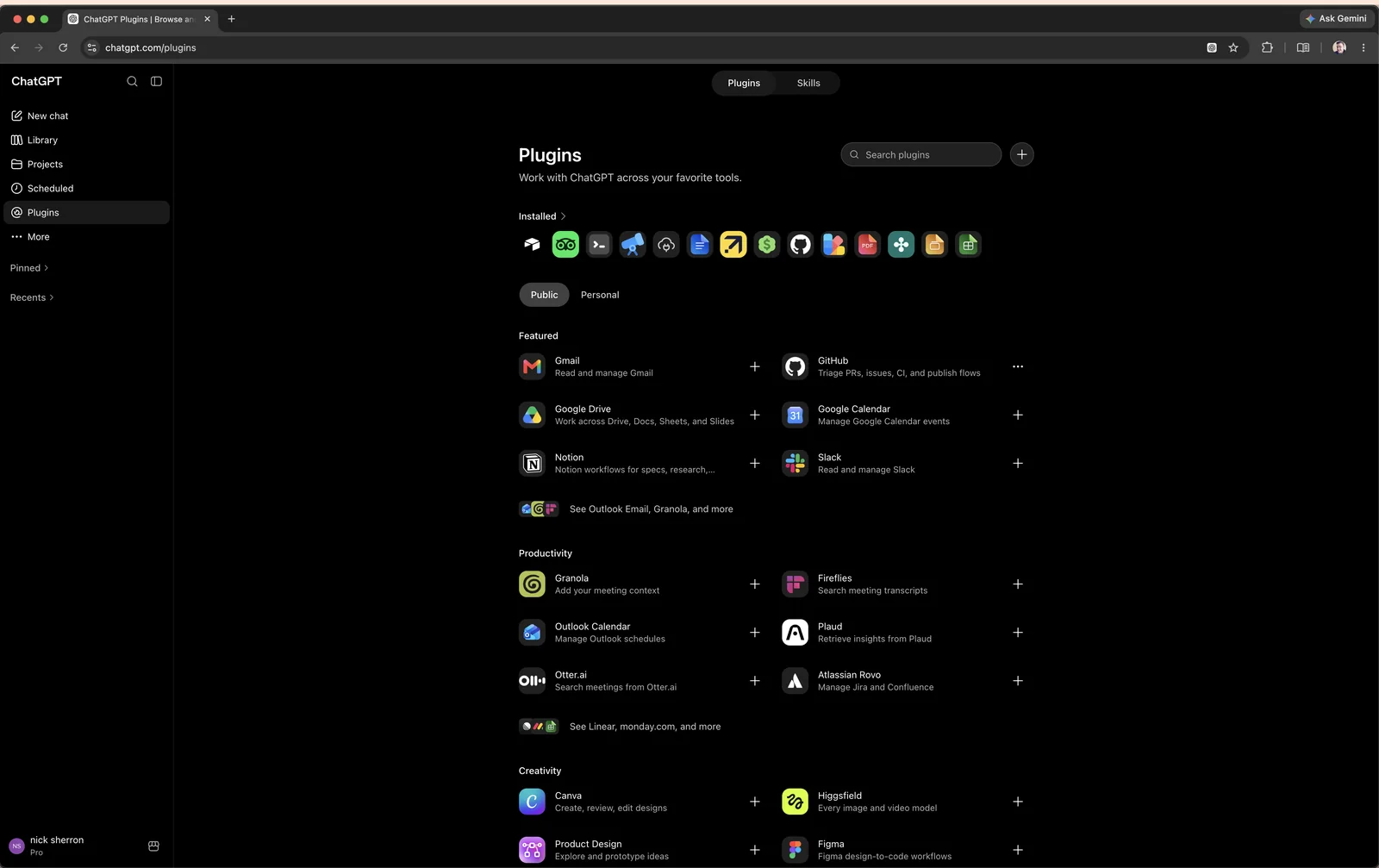
Go to the Plugins page and click the + button next to the search box.
-
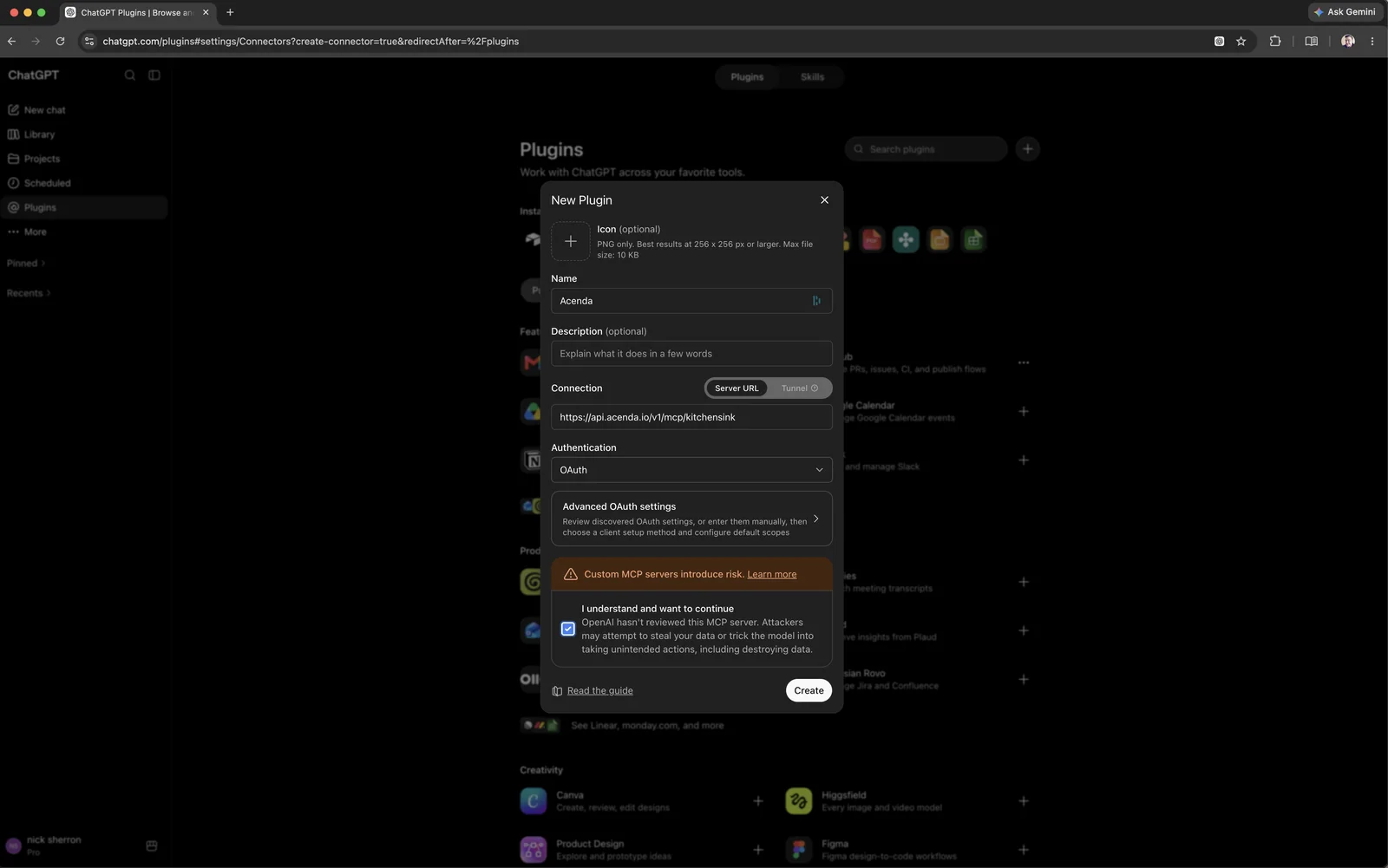
In New Plugin: name it Acenda, keep the connection type on Server URL and paste your MCP server URL, set Authentication to OAuth, tick I understand and want to continue, then click Create.
-
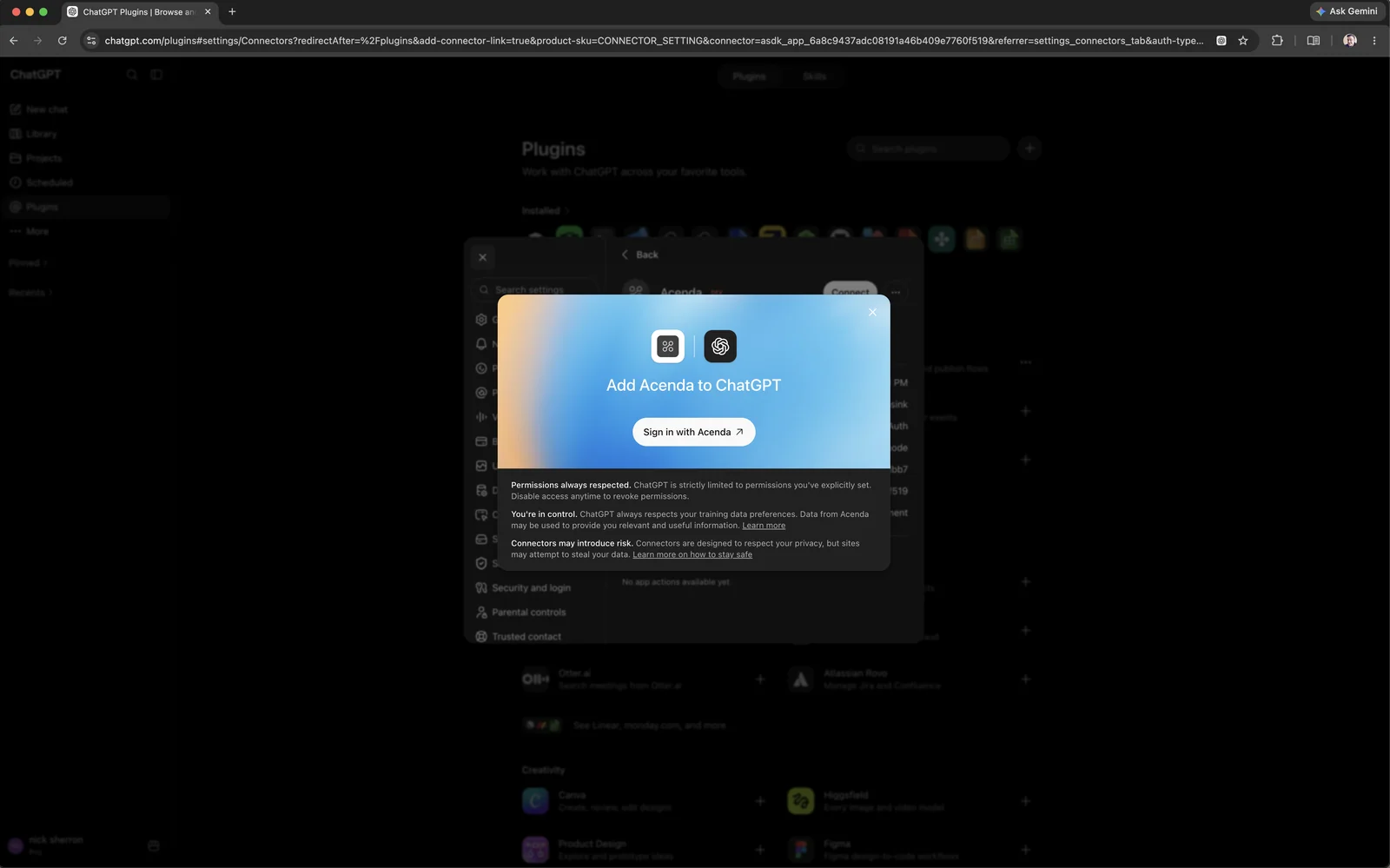
Click Sign in with Acenda and log in with your Acenda credentials.
-
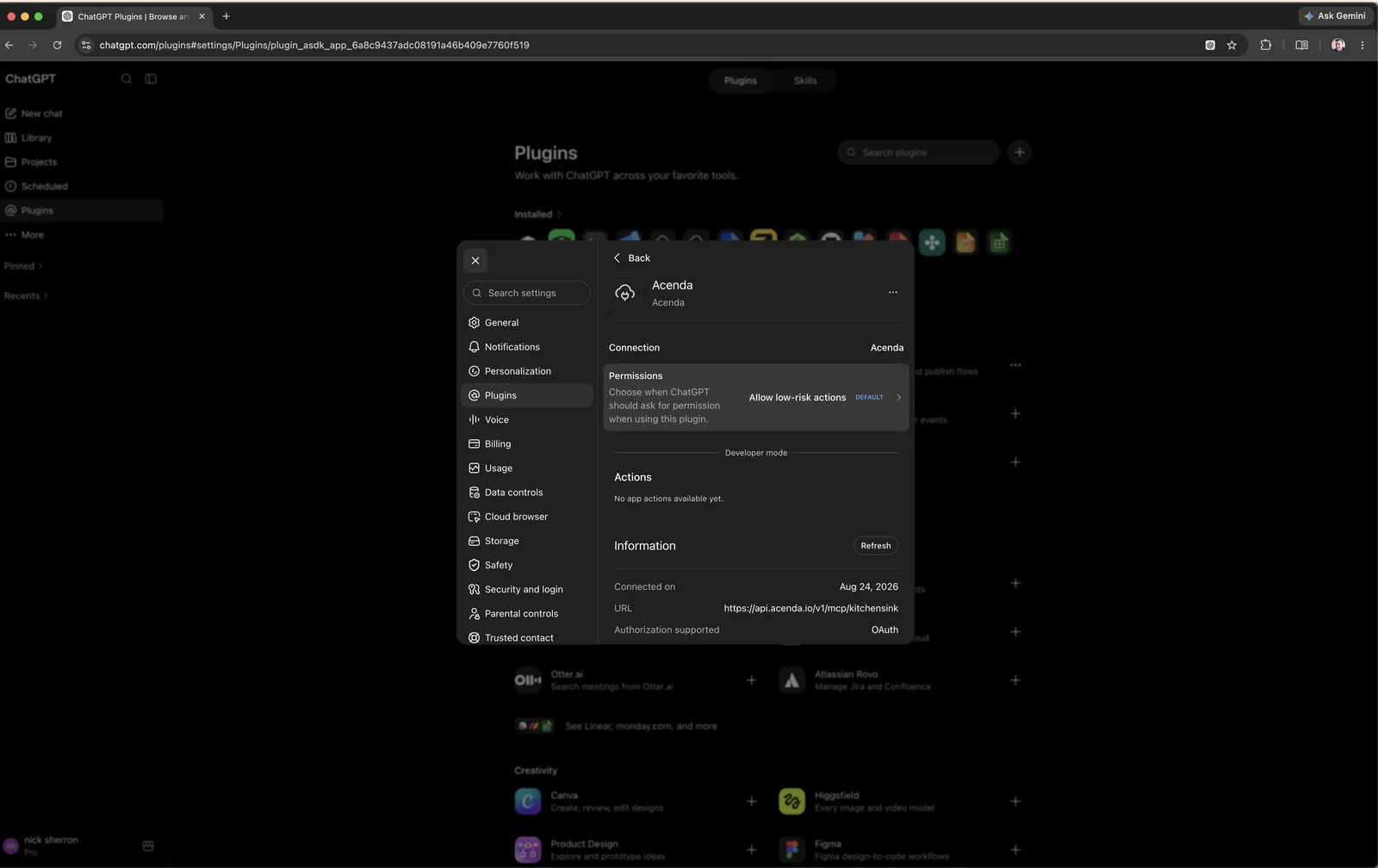
Done — the plugin's page shows the connection and lets you adjust when ChatGPT asks for permission.
Gemini
Open gemini.google.com/apps · official guide
-
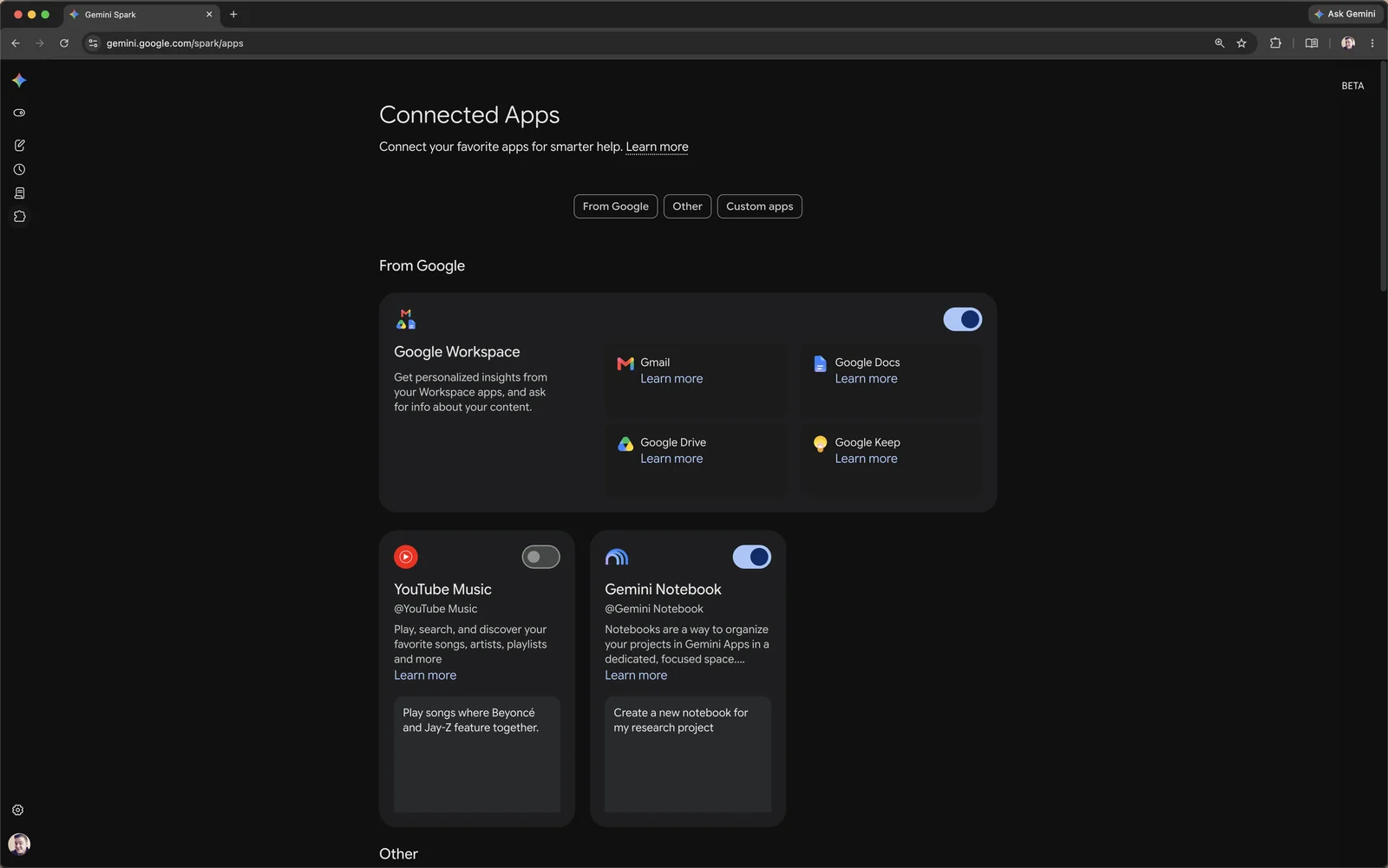
Open Connected Apps (Settings & help → Connected Apps, or the link above).
-
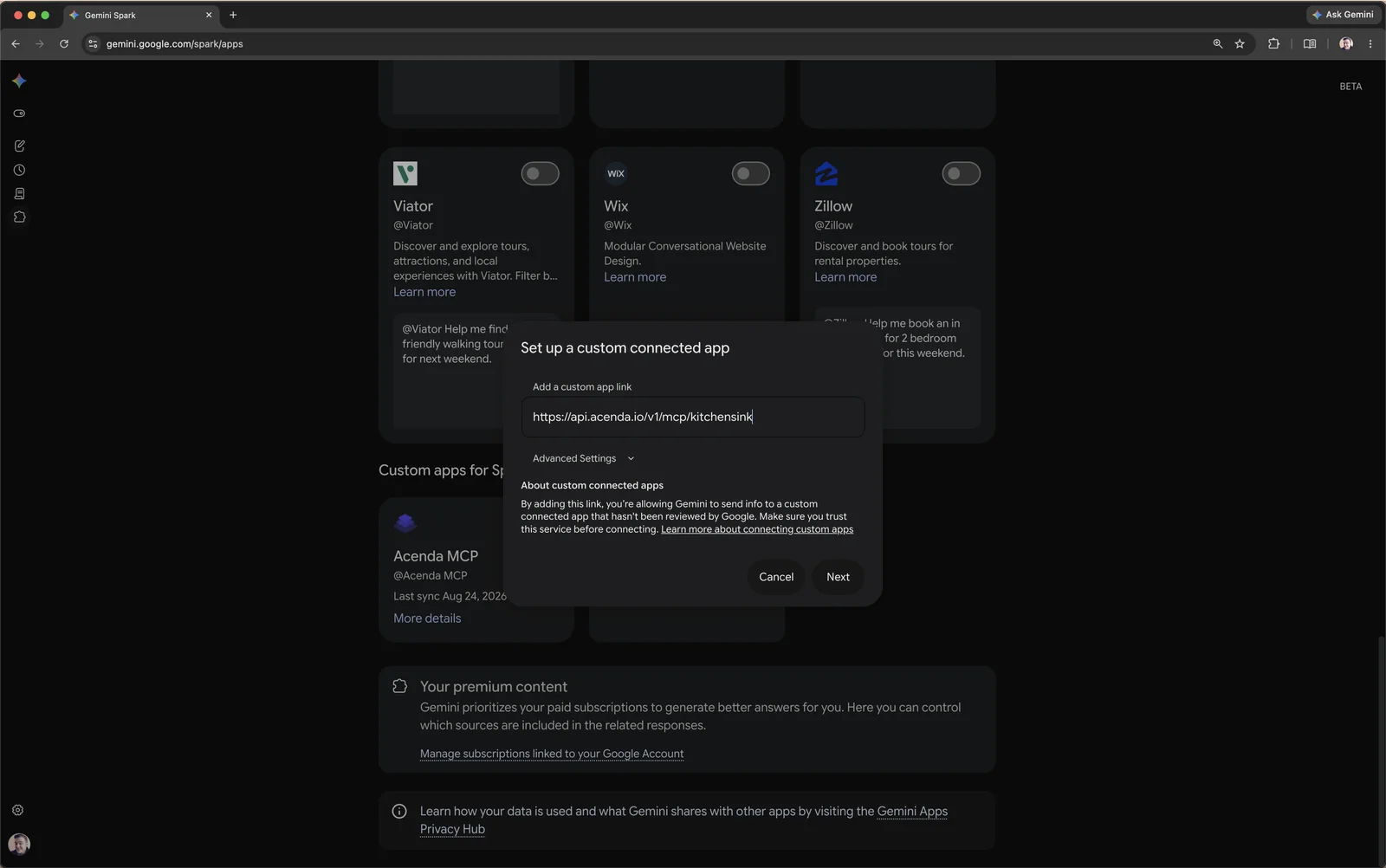
Scroll to Custom apps for Spark, click Add a custom app, paste your MCP server URL, and click Next. Sign in with your Acenda credentials when prompted.
-
The Acenda MCP app appears with its toggle on. In a Spark task, mention
@Acenda MCPto use it.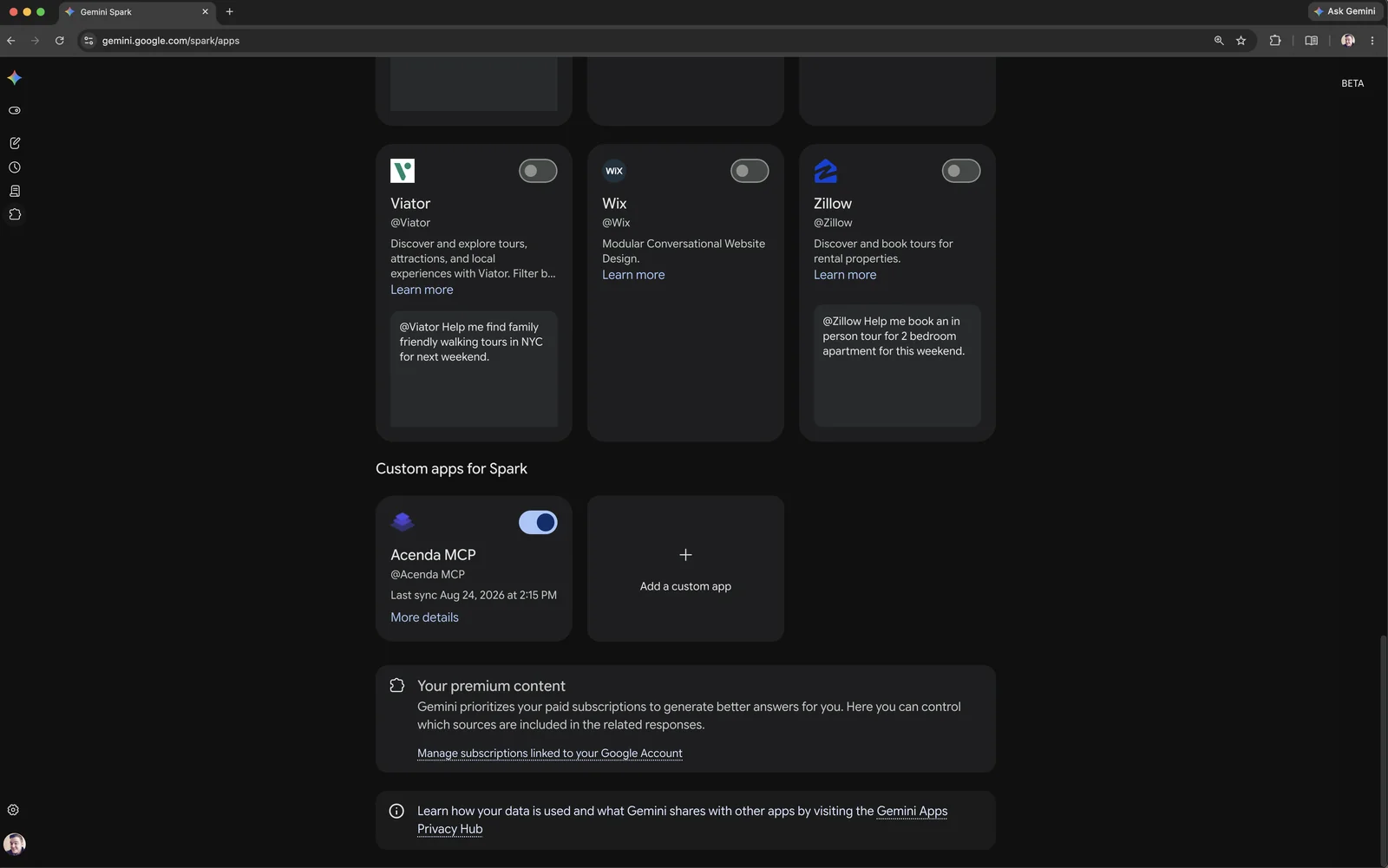
Grok
Open grok.com/connectors · official guide
-
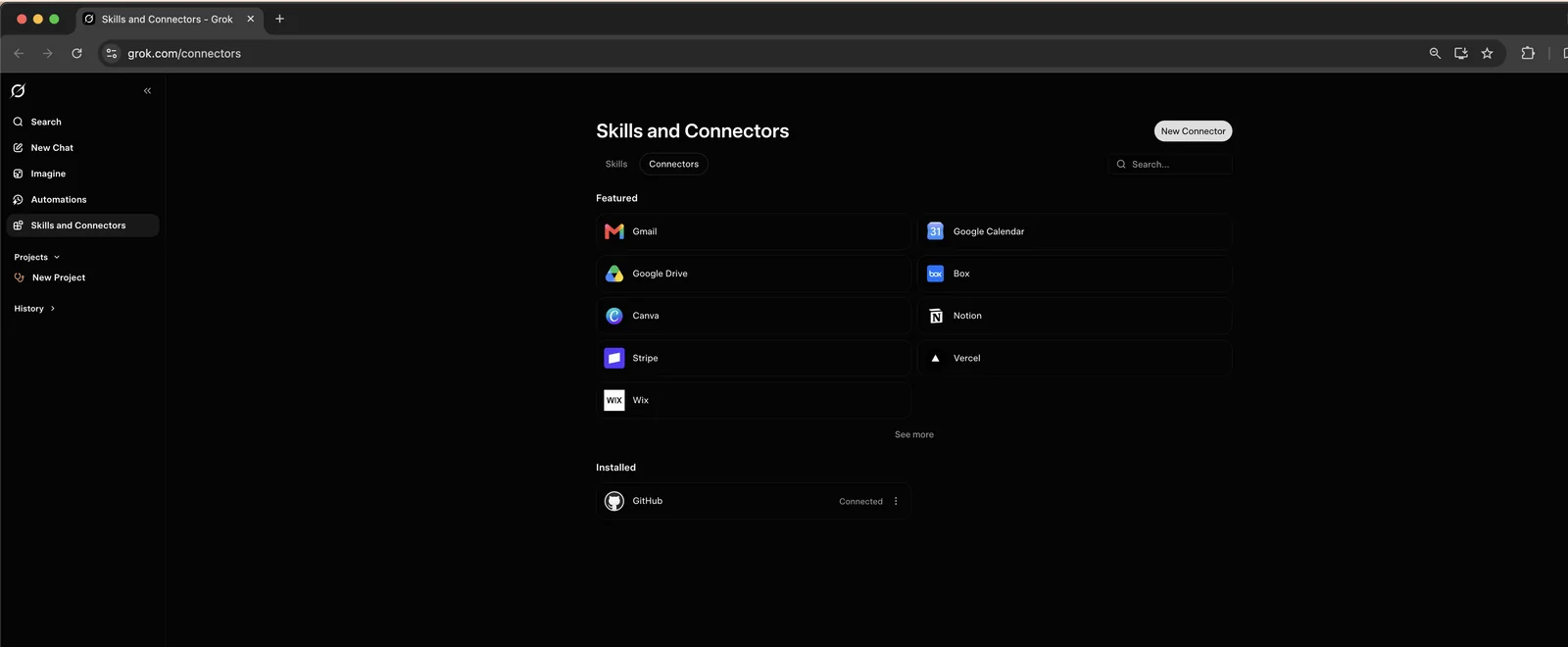
On Skills and Connectors, click New Connector.
-
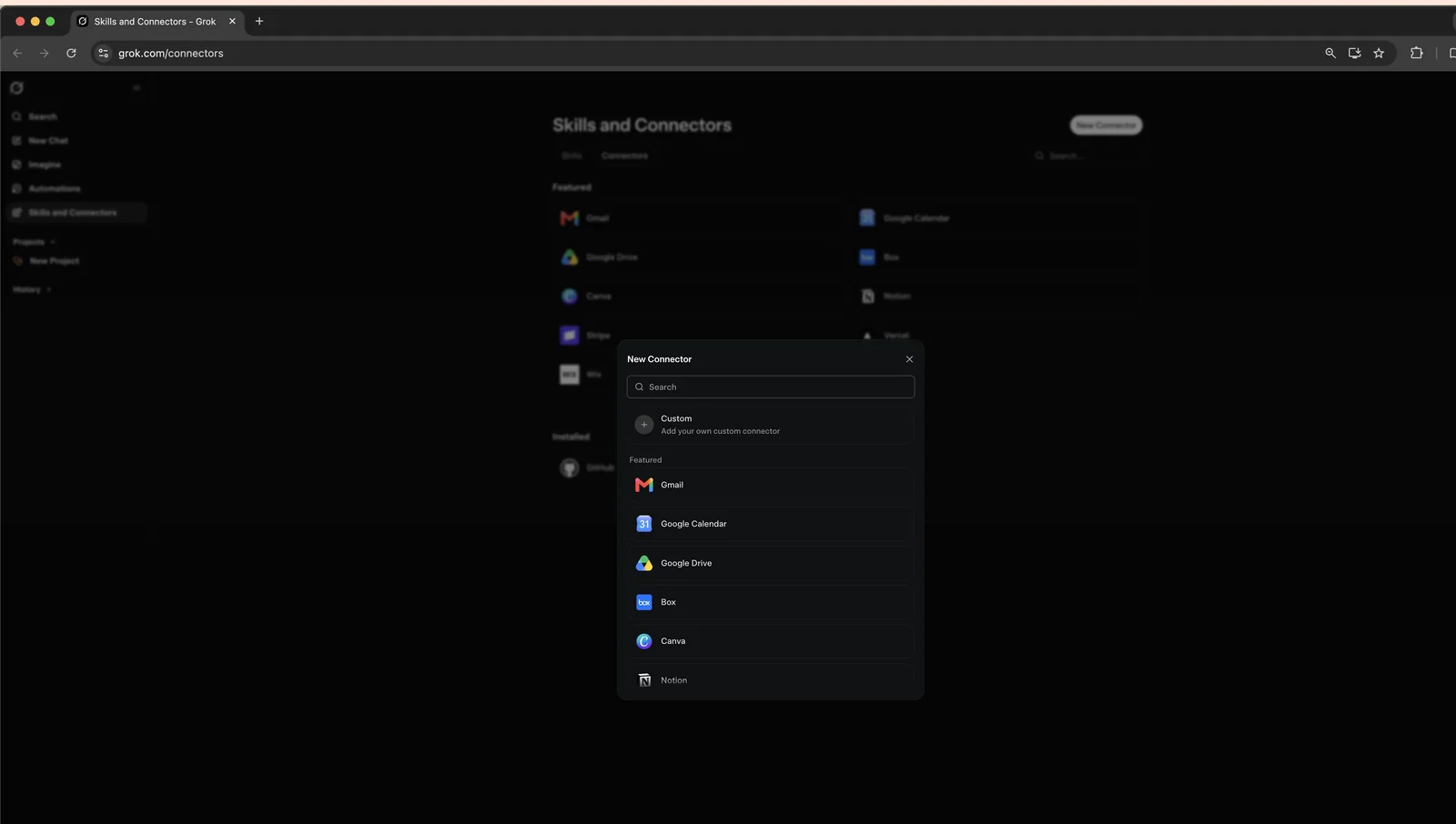
Choose Custom — add your own custom connector.
-
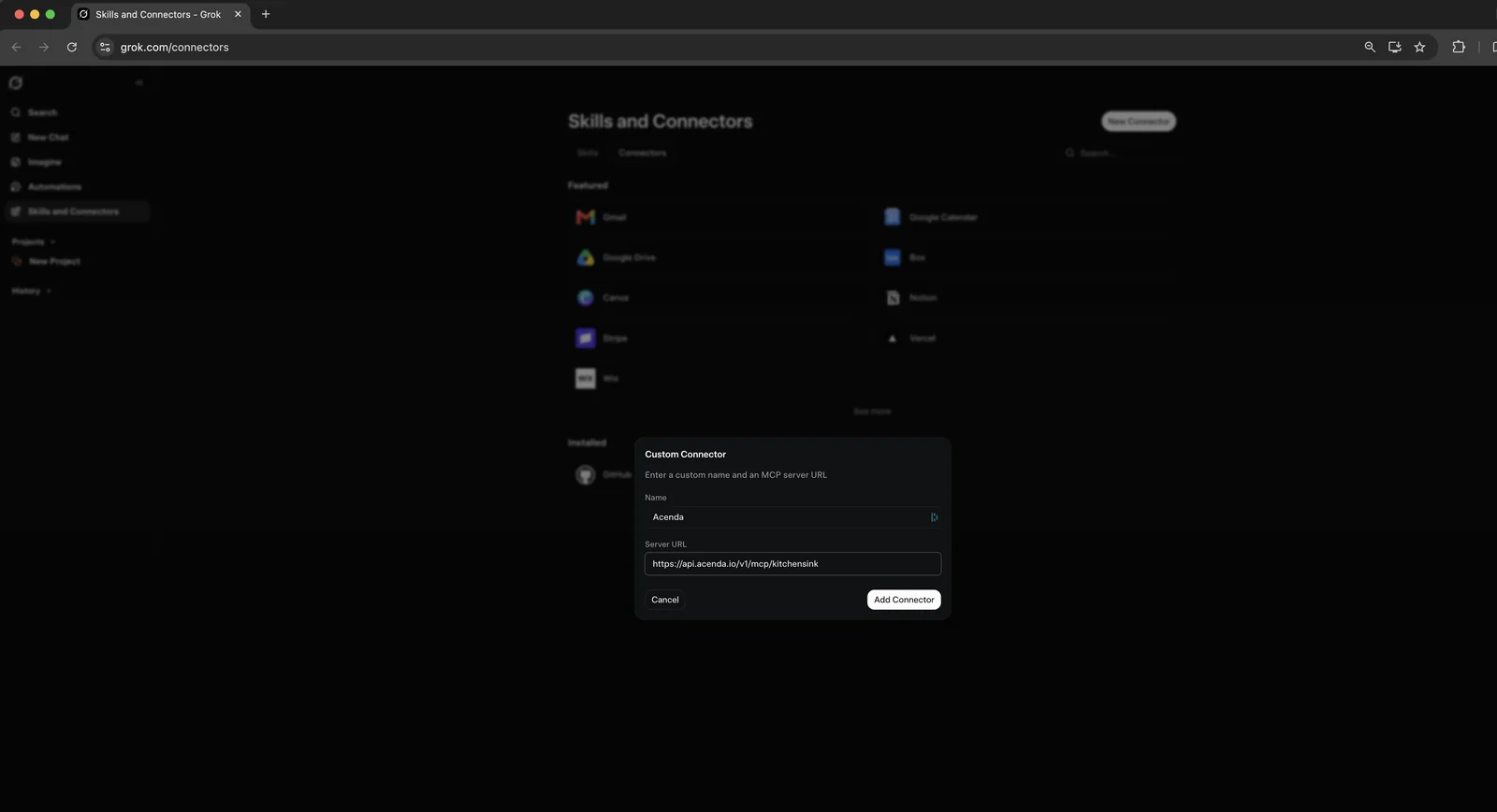
Name it Acenda, paste your MCP server URL, and click Add Connector.
-
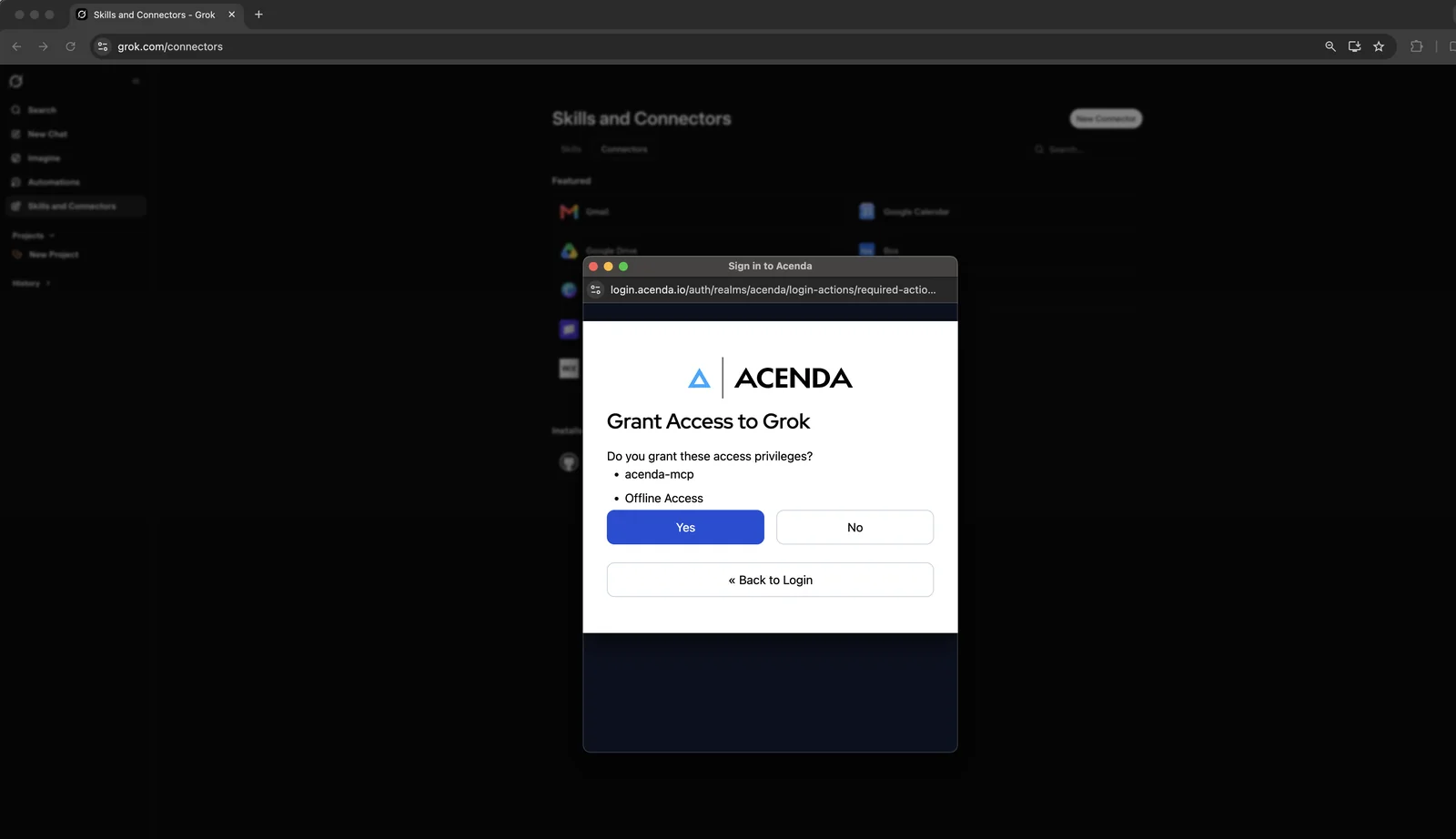
Sign in with your Acenda credentials and click Yes on the access prompt.
Troubleshooting
Sign-in works but the connection is refused
Your Acenda account needs access to the organization in the URL. If you can't open that organization in the Acenda admin, contact your Acenda representative, then reconnect.
What goes in place of the organization slug?
The short name of your organization — the part right after the domain
when you're in the Acenda admin, e.g.
https://admin.acenda.io/your_org.
The URL must include it: the assistant is scoped to exactly that
organization and can't switch organizations mid-chat.
I don't see the + button in ChatGPT
Turn on Developer mode under Settings → Security and login. It's web-only and needs a paid plan; on Business or Enterprise workspaces an admin must allow custom connectors first.
Gemini connected, but chat doesn't use it
Custom connected apps only run inside Spark tasks. Start a Spark task
and mention @Acenda MCP; it won't respond in a regular Gemini
conversation.
The assistant says the connection expired
Access tokens expire periodically. Open the provider's connector settings and reconnect — you'll go through the same Acenda sign-in again.
Is my data safe?
Access is read-only analytics, scoped to one organization, and every query runs as you — with the same permissions your Acenda account has. Nothing can be created, changed, or deleted through this connection. You can disconnect at any time from the provider's settings.
MCP Disclaimer
Use at Your Own Risk. Acenda's MCP server and related AI-powered functionality are provided as an assistive tool and may produce inaccurate, incomplete, outdated, or unexpected results. AI systems may "hallucinate," misinterpret instructions, or take actions based on incorrect information.
You are responsible for reviewing and validating all MCP-generated outputs and actions before relying on them. Acenda makes no warranties regarding the accuracy, reliability, availability, or fitness of MCP functionality and assumes no liability for errors, omissions, data loss, unintended actions, business interruption, or other damages resulting from its use.
By using the Acenda MCP server, you acknowledge and accept these risks.